


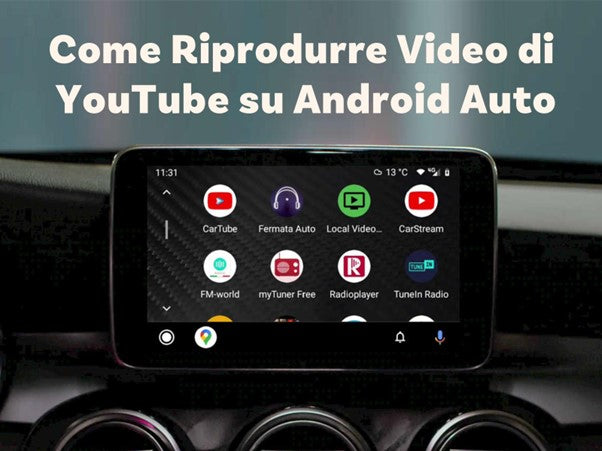
How to watch YouTube on Android Auto: preparation
Enabling YouTube on Android Auto requires completing a few essential steps. First, make sure you have an Android smartphone and download two apps: Android Auto Apps Downloader (AAAD) and CarStream. These are indispensable tools that will allow you to integrate additional functionalities into Android Auto. Here are the steps to complete:
- Download a compatible version of Android Auto: visit APKMirror and look for a version of Android Auto up to 6.9.613744, as later versions block some third-party functionalities. Install the APK file on your device.
- Download the AAAD app: go to GitHub to download the Android Auto Apps Downloader APK, the application that will allow you to install CarStream in a short time.
- Enable app installation from unknown sources: now, on your smartphone, go to Settings > Security > Install apps from external sources. By doing this, you will allow manual installation, a fundamental step to correctly configure the applications.
Once these steps are completed, you are ready to install and configure the necessary applications to watch YouTube on Android Auto.

How to install YouTube on Android Auto
Following these steps, you can enable YouTube on Android Auto using the CarStream app.
Install AAAD
The first step to understanding how to watch YouTube on Android Auto while driving is to download and install Android Auto Apps Downloader (AAAD), an essential tool for third-party applications:
- Go to GitHub and download the AAAD APK file.
- Once the download is complete, enable app installation from unknown sources by following the path:
Settings > Security > Install apps from external sources. - Complete the installation by following the on-screen instructions.
Install CarStream
Once you have installed AAAD, you will now be able to configure CarStream to access YouTube.
Then, open the AAAD Android Auto app and select CarStream from the list of available applications. Then, follow the instructions provided to complete the installation in a few minutes.
Connect your smartphone to the car
Once you have set everything up, all you have to do is connect your smartphone to the vehicle's Android Auto system. To do this:
- Use a USB cable or a Bluetooth connection, depending on your preferences and the compatibility of your vehicle
- Launch Android Auto and select CarStream Android Auto from your interface. You can now easily access YouTube content directly from the software screen.
How to use YouTube on Android Auto
Now that you have completed these operations, using YouTube on Android Auto is simple and intuitive. Follow these steps to enjoy your favorite content directly on your car screen:
- Launch Android Auto and CarStream: connect your smartphone via Bluetooth or USB cable. When Android Auto is active, choose CarStream from the list of available apps.
- Log in to your YouTube account: log in to your YouTube account to synchronize playlists, making it easier to find your preferred content.
- Search and play videos: use the integrated search bar on CarStream to search for any video and play it. You will have access to an experience similar to that of a smartphone.
On CarStream, you won't only be able to watch YouTube. In fact, the device also supports Netflix and similar streaming platforms. To access them, all you have to do is enter the URL of the website you want to browse in the CarStream address search bar.
Using Ottocast AI Box to watch YouTube
If you are looking for a practical way to watch YouTube on Android Auto, devices like Ottocast AI Box are a valid choice. These tools allow you to easily access platforms like YouTube Music on Android Auto and Netflix, directly from your car's display, without particular modifications.
Ottocast P3 CarPlay AI Box
The P3 CarPlay AI Box is a versatile device compatible with any CarPlay or Android Auto system. With a simple and fast connection, it allows you to use streaming apps like YouTube, Netflix, YouTube Music, and even Spotify. It is ideal for those looking for a quick setup: just connect it via the included USB cable and follow the quick guide. In just 2-3 minutes, the system is ready to use. Here are other interesting features:
- Compatible with iPhones (5 and up) and Android devices (version 6.0 or higher).
- Perfect for vehicles with or without touchscreens (remote control option available).

Ottocast i3 AI Box for BMW
This device is optimized exclusively for BMW vehicles with iDrive systems (versions 6, 7, 8, 9). The i3 AI Box model offers advanced features for those who want a superior driving experience. For example, you can watch YouTube, Netflix and access the Google Play Store to download other apps.
Furthermore, with split-screen mode, Nano SIM slot and memory up to 356 GM, the device is designed for those looking for maximum customization. It also features a Qualcomm Snapdragon 6125 processor and Android 13 operating system. In addition, it is equipped with Bluetooth 5.0 and dual-band Wi-Fi (2.4 GHz + 5 GHz).

Common problems and solutions
When using YouTube on Android Auto via CarStream, you may encounter some technical inconveniences. Here is a list of the most common problems and how to solve them more quickly.
Black screen during playback
If the Android Auto system screen is black when you try to play a video, the problem could be related to your smartphone's battery saving mode. So:
- Disable power saving mode by going to Settings > Battery > Power Saving
- Restart Android Auto to apply the changes
The app freezes during viewing
The app might freeze if you tried to play purchased or protected content on YouTube that might not be supported by CarStream. The solution? Here it is:
- Avoid selecting purchased or rented videos on YouTube.
- Try playing free content already present in your account
Connection errors between smartphone and car
The connection between the smartphone and the Android Auto system might not be stable, preventing CarStream from functioning correctly. Try this:
- Make sure the CarStream app is updated to the latest available version. You can check for updates on GitHub or through the Android Auto Apps Downloader (AAAD) app.
- If the problem persists, try disconnecting and reconnecting the USB cable or restarting the device.
Conclusion
By following this guide, you will be able to transform your car's screen into a device to entertain yourself and your passengers. Update the apps to always enjoy optimal performance and protect your privacy. With Ottocast devices, you can experience a practical, safe and fun experience.
FAQ
Is it legal to watch YouTube on Android Auto?
Watching YouTube on Android Auto might violate the app's usage policies, so make sure to use these solutions only for passenger entertainment and not while driving.
Can I use CarStream on any version of Android Auto?
CarStream works best with Android Auto versions up to 6.9.613744. Later versions may block some functionalities, so check compatibility.
Can I watch Netflix on Android Auto?
Yes, using CarStream or an Ottocast AI Box device, you can access Netflix and other streaming platforms by directly entering the URL in the address bar.
Is Ottocast AI Box compatible with all cars?
The P3 AI Box model is compatible with any CarPlay or Android Auto system, while the i3 AI Box is designed exclusively for BMW vehicles with iDrive 6, 7, 8, or 9.
How can I solve connection problems with CarStream?
To solve connection problems, update CarStream to the latest version, verify the compatibility of the Android Auto system, and check that the USB cable or Bluetooth connection are working.


Leave a comment
This site is protected by hCaptcha and the hCaptcha Privacy Policy and Terms of Service apply.